How do I create a WordPress Website

Table of Content


-
Author

-
Published
22 Jan 2026
-
Reading Time
37 mins
We’ve helped hundreds of Australian business owners start their first website. They felt excited and unsure at the same time. That feeling is completely normal, and we’re here to guide you through it.
Creating a professional website doesn’t need a computer science degree. We’ve worked with everyone from local tradies to boutique retailers. The trick is to break it down into simple steps.
This guide will show you how to launch a successful site for your Australian business. We’ll cover everything from choosing hosting to customising your design. By following our proven approach, you’ll build something you’re proud of.
Whether it’s your first business website, a blog, or your organisation’s online home, we’ve got you covered. Our step-by-step instructions are made for Australian business owners like you.
Key Takeaways
- Building a professional WordPress site is achievable for anyone, regardless of technical background or experience level
- The process breaks down into manageable steps including hosting selection, installation, theme customisation, and content creation
- Australian businesses benefit from choosing local hosting providers that understand regional requirements and compliance needs
- Strategic planning before building saves time and prevents costly redesigns down the track
- WordPress powers over 40% of all websites globally, making it a reliable and well-supported platform choice
- Understanding key decisions about design and functionality helps you build a site that drives real business results
1. What You Need to Know Before Building Your WordPress Website
Getting to know WordPress basics can save you a lot of time. It helps you make better choices when building your site. Before diving into the technical stuff, let’s cover the key concepts that make a WordPress project successful.
WordPress is more than just a website builder. It’s a content management system that lets you control your online space fully. This is important because it affects everything from the start to your future growth.
Understanding WordPress as a Website Platform
WordPress is used by over 40% of all websites worldwide. This makes it the most popular content management system globally. It shows that businesses around the world trust WordPress for their online needs.
The platform has three main parts that help you create a WordPress website well:
- A flexible core system that manages your content, users, and website structure
- Thousands of themes that control your website’s appearance and design
- Plugins that add specific functionality without requiring custom code
We’ve worked with WordPress for years. Its user-friendly interface makes it easy for beginners but also offers depth for experienced developers. You don’t need to know how to code to create a professional site, but you can customize it if you want.
Why WordPress Is the Best Choice for Australian Businesses
Australian businesses have unique needs when choosing a website platform. WordPress offers specific benefits that are important here:
Cost-effectiveness is a big advantage. WordPress is much cheaper than custom-built sites, which can cost $10,000 to $50,000. It gives you professional results without breaking the bank.
The platform scales with your business. Whether you need a simple site or a complex e-commerce platform, WordPress can adapt without requiring a complete rebuild.
We’ve seen many Australian businesses benefit from WordPress’s robust local community of developers and support professionals. This means you can get help quickly and support local talent.
WordPress.com vs WordPress.org Explained
This difference often confuses people starting with WordPress. But understanding it is crucial for making the right choice. The two platforms share a name but offer different experiences.
WordPress.com is a hosted service where you create an account and build your site on their servers. It’s easy to start but has limits on customisation, plugins, and making money.
WordPress.org—the focus of this guide—offers the self-hosted version. You download free WordPress software and install it on your own hosting account. This gives you full control and endless possibilities.
| Feature | WordPress.com | WordPress.org |
|---|---|---|
| Initial Cost | Free to $45/month | Hosting cost only ($5-30/month) |
| Customisation | Limited themes and no plugins on free plan | Unlimited themes and plugins |
| Ownership | Platform controls your site | You own everything completely |
| Monetisation | Restricted on lower-tier plans | Full freedom to monetise |
We recommend WordPress.org for most business websites. It gives you the flexibility to add any functionality you need. You’re not limited by platform restrictions, and you have full control over your online presence.
When someone asks how do i create a wordpress website for business, WordPress.org is usually the best answer. The initial setup might need a few extra steps, but the long-term benefits are worth it.
2. Planning Your Website Structure and Content
Good planning turns your DIY WordPress site into a powerful tool. Many Australian businesses start without a plan, leading to costly changes later. This wastes time and money.
Planning is key to meeting your business goals. Before you start, you need a solid plan. This plan will guide all your decisions.
Defining Your Website Goals and Target Audience
Every website needs clear, measurable goals. Are you looking to generate leads, sell products, or boost brand awareness? Knowing your goals is essential.
Your goals influence your site’s structure and content. For example, a lead generation site needs clear calls-to-action. An e-commerce site needs a product catalogue and secure checkout.
Understanding your audience is also vital. Ask yourself:
- Who are your ideal customers or clients?
- What problems do they face that your business solves?
- What information do they need before making a decision?
- How tech-savvy are they when navigating websites?
- What devices do they mainly use to browse online?
Create a simple profile of your typical visitor. This keeps you focused on their needs, not just what looks good.
Sketching Out Your Site Map and Key Pages
A site map is your website’s blueprint. It outlines all pages and how they connect. This prevents missing pages and confusing navigation.
- Home page – your digital front door that welcomes visitors and guides them forward
- About page – builds trust by telling your story and showing your expertise
- Services or Products pages – detailed information about what you offer
- Contact page – makes it easy for prospects to reach you
- Blog – demonstrates expertise and improves search engine visibility
Sketch this structure on paper or use a mind-mapping tool. Visualising the hierarchy helps spot content gaps before you start building.
Think about the user journey through your site. How will visitors move from discovery to conversion? Each page should have a clear purpose and lead logically to the next step.
Gathering Content and Resources Before You Start
Creating content mid-build slows down your DIY WordPress site. We recommend gathering everything you need before you start.
Create a content checklist that includes:
- Written copy for all your key pages (home, about, services, contact)
- High-quality images that represent your business professionally
- Your logo in multiple formats (PNG with transparent background is essential)
- Brand colours and fonts to maintain visual consistency
- Customer testimonials and case studies that build credibility
- Videos or downloadable resources you plan to offer
- Social media links and any certifications or awards
Having this material ready makes your build smooth and efficient. You’ll keep momentum and see your website take shape quickly.
This preparation phase might seem tedious, but it saves time later. The time you invest in planning saves double that time during the build phase.
3. Selecting WordPress Hosting Australia Providers
Take your time to look at WordPress hosting options in Australia before you decide. Your hosting provider affects your site’s speed, reliability, and security. These are key for a good user experience and search engine rankings.
The right hosting is key for your WordPress site to work well for Australian visitors. Here’s what you need to know to make a good choice.
Essential Features to Look for in WordPress Hosting
First, find out the essential features a good hosting service should have. These features affect your site’s performance and your peace of mind.
- Uptime guarantees: Aim for 99.9% or higher to keep your site up
- Adequate storage and bandwidth: Choose based on your site’s traffic and content
- Automated daily backups: Keep your content and data safe automatically
- SSL certificates: Important for security and SEO
- Australian-based support: Get help when you need it with local experts
- One-click WordPress installation: Makes setting up your site easy
These features are the base of reliable hosting. We look for providers who offer these as standard, not as extra costs.
Top Australian Hosting Providers for WordPress
Many Australian hosting providers focus on WordPress, with servers and support for Australian businesses. VentraIP, Crazy Domains, and Panthur offer quality service at good prices.
Each provider has its own strengths, depending on what you need. The table below shows how popular Australian WordPress hosting options compare.
| Provider | Starting Price | Uptime Guarantee | Australian Servers | Support Type |
|---|---|---|---|---|
| VentraIP | $8.95/month | 99.9% | Sydney, Melbourne | 24/7 Australian support |
| Crazy Domains | $6.95/month | 99.9% | Australian data centres | Phone and live chat |
| Panthur | $10.00/month | 99.95% | Multiple Australian locations | Priority Australian support |
| SiteGround | $14.99/month | 99.99% | Sydney data centre | 24/7 global support |
Shared Hosting vs Managed WordPress Hosting
It’s important to know the difference between shared hosting and managed WordPress hosting. Shared hosting is cheaper and good for small sites with not too much traffic. Your site shares server resources with others.
Managed WordPress hosting costs more but offers special WordPress features, automatic updates, better security, and expert help. For most business sites, it’s worth the extra cost.
The benefits in performance and time saved on upkeep make it worth the extra cost. Your site will run faster and more securely without needing you to be tech-savvy.
Server Location and Website Speed Considerations
Where your hosting servers are located really matters for website speed. Hosting in Australia means faster load times for Australian visitors because data travels shorter distances.
This closeness improves user experience and can help your site rank better in Australian searches. Google values page speed, making local hosting a SEO plus.
Switching to local Australian servers can improve load times by 40-60%. This boost in speed can lead to better user engagement and more conversions.
Comparing Hosting Plans and Pricing Options
When looking at hosting plans, don’t just focus on the price. Check what’s included, renewal rates, and how easy it is to scale up.
Look at the provider’s reputation for reliability and support quality. Read recent customer reviews and check independent uptime reports if you can.
The cheapest option isn’t always the best value for business sites. We suggest balancing cost with features, performance, and support quality to find the optimal hosting solution for your WordPress site.
4. Registering Your Domain Name
The domain name you pick today will shape how people find and remember your business for years. It’s your website’s address on the internet and a key part of your brand. We suggest you think carefully about this choice, as your domain is the base of your online presence.
Choosing a Memorable and Brandable Domain Name
Your domain name should be memorable, easy to spell, and relevant to your business. We’ve seen many businesses struggle with domains that are hard to remember or type correctly.
Here are some key tips for picking your domain:
- Keep it short and simple – aim for 15 characters or fewer when possible
- Avoid hyphens, numbers, and unusual spellings that confuse people when they hear your domain spoken aloud
- Make it brandable – your domain should reflect your business name or clearly indicate what you do
- Consider keywords carefully – while exact-match domains aren’t as powerful as they once were, relevant terms can help
- Think long-term – choose a domain that won’t limit your business as it grows and evolves
“Your domain name is your first impression online. Make it count by choosing something that builds trust and stays with people long after they’ve left your site.”
Registering .com.au and Australian Domain Extensions
For Australian businesses, we strongly recommend registering a .com.au domain extension. This shows you’re an Australian business serving Australian customers. It builds trust with local audiences and can improve your visibility in Australian search results.
To register a .com.au domain, you’ll need an Australian Business Number (ABN) or other qualifying Australian presence. The registration process verifies this eligibility to maintain the integrity of the .com.au namespace.
Many businesses also register the .com version of their domain to protect their brand and redirect it to their primary .com.au site. This prevents competitors from capturing traffic and reinforces your brand protection strategy.
The registration process is straightforward:
- Search for your desired domain name through a registrar or your hosting provider to check availability
- Complete the registration form with accurate contact information and Australian business details
- Pay the annual registration fee, which typically ranges between $15-$50 for .com.au domains
- Receive confirmation and access to your domain management dashboard
Connecting Your Domain to Your Hosting Provider
Once you’ve registered your domain, you’ll need to connect it to your hosting account where your WordPress website builder will create your site. Many WordPress hosting providers include domain registration in their packages or offer it as an add-on. This simplifies management by keeping everything in one place.
The connection process involves updating your domain’s nameservers to point to your hosting provider’s servers. Your hosting provider will supply the specific nameserver addresses—typically two addresses that look like “ns1.hostingprovider.com” and “ns2.hostingprovider.com”.
Here’s what you need to do:
- Log into your domain registrar’s control panel
- Locate the DNS or nameserver settings for your domain
- Replace the existing nameservers with those provided by your hosting company
- Save the changes and allow time for DNS propagation
This DNS change can take 24-48 hours to propagate globally, though it’s often much faster. During this time, some visitors might see your old site (if you had one) while others see the new one. We recommend making this change during off-peak hours to minimise any disruption.
5. How Do I Create a WordPress Website: Installation Steps
Now, you’ll install WordPress and see your website come to life. Most Australian hosts make this easy with automated tools.
There’s a method for everyone, whether you’re tech-savvy or need a hand. We’ll look at both options so you can set up your WordPress site with ease.
Installing WordPress Using Your Hosting Control Panel
Your hosting control panel is where you manage your site. Most hosts have tools that make installing WordPress simple.
This is great for beginners because it’s easy. You’ll find installers in your cPanel or hosting dashboard, ready to go.
Log into your hosting control panel and find the WordPress installer. Tools like Softaculous or Fantastico are common.
These tools do all the work for you. They create databases, upload files, and set up settings. Just click the WordPress icon, select “Install,” and the wizard starts.
Completing the Installation Wizard
The wizard asks for some important details. Pick your domain and decide where to install WordPress.
Choose a unique admin username and a strong password. Enter your email, site title, and tagline. You can always change these later.
Click “Install” and wait a few minutes. You’ll get your login details once it’s done.
Manual WordPress Installation via FTP (Advanced Method)
If you’re tech-savvy, manual installation gives you more control. It’s best for developers or those needing custom setups.
Downloading WordPress Files
Go to WordPress.org and download the latest version as a ZIP file. Extract it to a folder on your computer. This folder will hold the WordPress files you’ll upload.
Creating Your Database and Uploading Files
In your hosting control panel, create a new MySQL database. Note down the database name, username, password, and host details.
Use an FTP client like FileZilla to upload the WordPress files to your public_html directory. Then, go to your domain in a browser to start the installation. Enter your database details when asked.
Logging Into Your WordPress Dashboard for the First Time
After installing, you’re ready to log into your WordPress admin area. Go to yourdomain.com.au/wp-admin and use the credentials you set up.
The WordPress dashboard welcomes you with a clean interface and helpful prompts. This is where you’ll manage your site’s content, design, plugins, and settings.
| Installation Method | Best For | Time Required | Technical Level |
|---|---|---|---|
| One-Click Installer | Beginners and quick setups | 3-5 minutes | No technical skills needed |
| Softaculous | Users wanting backup options | 5-7 minutes | Basic understanding helpful |
| Manual FTP Installation | Developers and custom setups | 15-20 minutes | Intermediate to advanced |
Congratulations—your WordPress website is now installed and ready for customisation. The hard technical work is done, and now you can get creative.
6. WordPress Tutorial for Beginners: Understanding the Dashboard
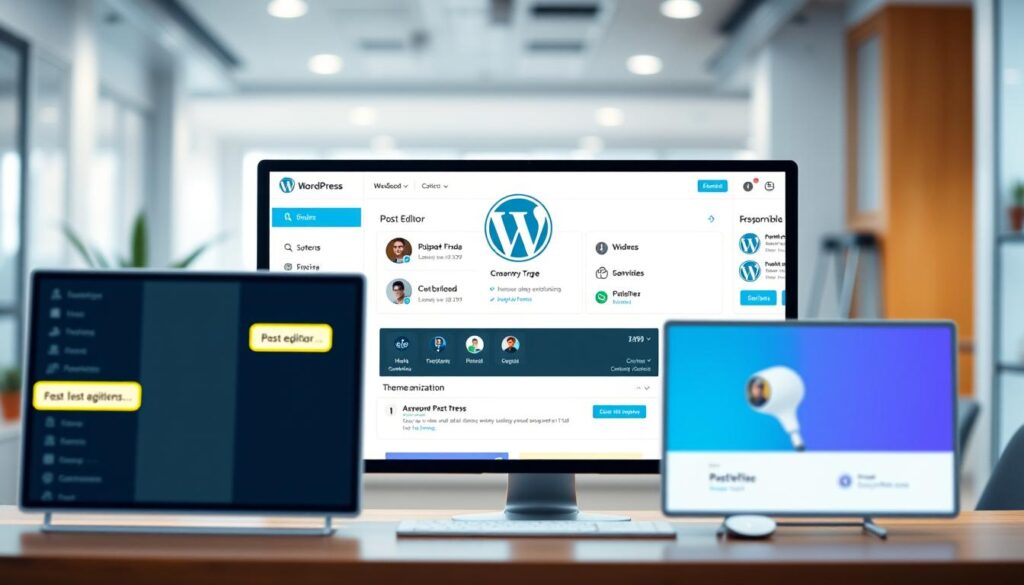
When you first log into WordPress, you’ll find the dashboard. It’s your website’s control center. This wordpress tutorial for beginners will show you the key features to get started with.
The dashboard might look overwhelming at first. But, it’s easy to navigate once you get the hang of it. Take a few minutes to explore before making any changes.
Navigating the WordPress Admin Interface
The left sidebar has your main menu with all the tools you need. You’ll see sections for Posts, Media, Pages, Comments, Appearance, Plugins, Users, Tools, and Settings.
The dashboard home screen has several useful panels:
- Welcome panel – Quick links to customise your site and create content
- Activity feed – Recent posts and comments at a glance
- Site Health Status – Alerts about any issues or improvements
- Quick Draft – Create draft posts without leaving the dashboard
The top toolbar gives you quick access to your site preview, profile settings, and updates. Bookmark your dashboard URL for easy access.
Configuring General Settings and Permalinks
Before you start creating content, set up your basic settings. Go to Settings > General to enter your site’s information.
Here, you’ll set your WordPress address and Site address (they should be the same). Also, enter your admin email for important notifications.
Then, visit Settings > Permalinks to set your permalink structure. This affects how your page and post URLs look to visitors and search engines.
We strongly recommend choosing “Post name” for clean, SEO-friendly URLs. This means your URLs will look like yourdomain.com.au/about instead of yourdomain.com.au/?p=123.
Setting Your Site Title, Tagline, and Time Zone
Your site title and tagline show up on your website and in search results. Your title should be your business or website name. The tagline should briefly describe what you do.
Setting your time zone correctly ensures posts publish at the right local times. Choose your Australian city from the dropdown menu instead of using a UTC offset.
Other settings to explore include:
- Reading – Controls your homepage display and blog settings
- Discussion – Manages comment moderation and notifications
- Media – Sets default image sizes for uploads
Understanding these foundational settings helps avoid problems later. Take time to review each section before you start building your site.
7. Choosing and Installing WordPress Themes
WordPress themes turn your content into a professional website that shows off your business. The theme you pick affects how your site looks, feels, and works. We’ll show you how to find, check, and install the best theme for your Australian business.
Exploring the WordPress Theme Directory
The WordPress theme directory has thousands of free, quality-checked themes for any business. Go to Appearance > Themes in your dashboard and click Add New to see them all. You’ll find the latest and most popular themes right there.
Use the filter to find themes that fit your needs. Look for things like responsive design, custom colours, and special features your business needs. This way, you won’t waste time looking through too many options.
Free Themes vs Premium Theme Options
Deciding between free and premium themes depends on your budget and what you need. Both can look great if you choose the right one. Here’s a comparison to help you decide:
| Feature | Free WordPress Themes | Premium Themes |
|---|---|---|
| Cost | Completely free from WordPress directory | Typically $50-$100 one-time purchase |
| Design Options | Basic layouts, limited customisation | Sophisticated designs, extensive options |
| Support | Community forums only | Dedicated developer support included |
| Updates | Variable frequency, depends on developer | Regular updates and security patches |
| Best For | Beginners, simple sites, tight budgets | Professional sites, specific requirements, businesses |
Free themes from the official directory are safe, reviewed for quality, and great for many sites. Premium themes from places like ThemeForest offer more design and features. Think about what you need long-term when choosing.
Installing and Activating Your Chosen Theme
Installing themes from the directory is quick. Click on a theme you like, then Preview it. If you’re happy, click Install and wait. Then, click Activate to make it live.
For premium themes, upload the ZIP file manually. Go to Appearance > Themes > Add New > Upload Theme. Upload the file, and activate it after it’s installed. Don’t unzip premium theme files before uploading—WordPress does it for you.
Using the WordPress Website Builder and Theme Customiser
After activating your theme, use the website builder in Appearance > Customise. This tool lets you change your site’s look in real-time. You’ll see your site on the right and options on the left.
The Customiser has settings for site identity, colours, typography, and more. Each theme is different, so explore to see what you can do. Make changes with confidence—nothing goes live until you click Publish.
Some themes come with drag-and-drop page builders. These tools let you create custom layouts without coding. Try different settings to get the look your Australian business needs.
8. Installing Essential WordPress Plugins
After setting up your WordPress theme, it’s time to add wordpress plugins. Plugins are like apps for your site, making it powerful. They add important features to your website.
Choose plugins wisely. Pick only what you need to avoid slowing your site. Quality is more important than quantity when adding features.
Security Plugins to Protect Your Website
Security is key when picking plugins. A hacked site can harm your reputation and data. It also affects your search rankings.
Wordfence, Sucuri, or iThemes Security are top choices. They offer protection against malware and more. They keep your site safe from threats.
Australians face cyber threats like everyone else. A good security plugin blocks bad traffic before it hits your site.
Performance and Caching Plugins for Speed
Website speed is vital for user experience and rankings. Performance plugins keep your site fast.
Plugins like WP Rocket improve your site’s speed. They make your pages load quicker. This is great for visitors.
Check if your host offers caching first. Adding extra caching plugins can cause problems.
SEO Plugins for Better Search Engine Rankings
Good SEO starts with the right tools. Yoast SEO or Rank Math are top choices. They help optimise your content.
These plugins manage meta descriptions and sitemaps. They also offer tips to boost your search visibility. They help you target the right keywords.
Contact Forms and Other Functional Plugins
Contact forms are essential for most sites. Plugins like Contact Form 7 or WPForms make them easy to set up. They protect against spam.
Other useful plugins include:
- UpdraftPlus for automated backups
- Smush or ShortPixel for image compression
- Akismet for comment spam filtering
To install plugins, go to Plugins > Add New in your WordPress dashboard. Search, install, and activate. Most plugins have a settings menu after activation.
9. Creating Pages and Posts for Your DIY WordPress Site
Creating content is where your DIY WordPress site comes to life. After setting up your theme and plugins, it’s time to add pages and posts. These will share your message with Australian customers. We’ll guide you through this step-by-step.
Knowing the difference between Pages and Posts is key to organising your site well. Both have their own roles in your content plan.
Understanding Pages vs Posts in WordPress
WordPress divides content into two main types. Pages are static, rarely changing. Posts are dynamic blog entries shown in chronological order.
The table below shows the main differences between these content types:
| Feature | Pages | Posts |
|---|---|---|
| Primary Purpose | Static, timeless information | Time-sensitive blog content |
| Organisation | Hierarchical structure with parent/child relationships | Organised by categories and tags |
| Display Location | Navigation menus, standalone URLs | Blog feed, archive pages, RSS feeds |
| Typical Examples | Home, About, Services, Contact | News updates, articles, company announcements |
| Publication Date | Not prominently displayed | Shown with timestamp, displayed chronologically |
Creating Essential Website Pages
Every DIY WordPress site needs key pages. Go to Pages > Add New to start making these essential pages. Start with your most important ones first.
Building Your Home Page
Your home page is the first thing visitors see. Make sure it answers three important questions: What do you do? Why should visitors care? What should they do next?
Include these on your home page:
- A clear headline that tells your main value
- A brief description of your products or services
- Engaging images or videos that show your business
- Clear calls-to-action to guide visitors
- Trust indicators like testimonials or client logos
Crafting About and Contact Pages
Your About page builds trust by sharing your story. Introduce your team, explain your mission and values, and highlight what makes your Australian business special. Being genuine connects with customers.
The Contact page needs to give visitors the info they need to reach you. Include your address, phone number, email, hours, and a contact form. Make it easy for customers to get in touch.
Writing and Publishing Your First Blog Post
Blog posts attract visitors with valuable content. Go to Posts > Add New to write your first post. Use an engaging title, create content that answers your audience’s questions, and add images.
Choose the right categories and tags to organise your content. Use your SEO plugin to make the post search engine friendly. When ready, click Publish to share your content.
Mastering the WordPress Block Editor
The WordPress Block Editor (Gutenberg) makes creating content easy without coding. Click the “+” icon to add different block types for various content elements. Each block has its own purpose.
Common block types include:
- Paragraph blocks for body text
- Heading blocks for titles and subheadings
- Image blocks for photos and graphics
- List blocks for bulleted or numbered lists
- Button blocks for calls-to-action
- Columns blocks for multi-column layouts
The block-based approach lets you create complex page layouts by mixing different blocks. Adjust settings for each block, move them around, and preview before publishing. This flexibility lets you build the website you dream of.
10. Customising Your WordPress Website Design
Moving beyond default theme settings lets you create a WordPress website that truly represents your Australian business. Customisation turns your site into a branded digital asset that connects with your target audience.
The process involves making strategic adjustments to visual elements, navigation structure, and overall user experience. We’ll guide you through each essential customisation step to create a professional, cohesive online presence.
Using the Theme Customiser to Adjust Appearance
The Theme Customiser is your primary tool for visual changes. Access it by navigating to Appearance > Customise in your WordPress dashboard.
This interface provides live preview functionality—you see changes immediately before publishing them. Most themes include these key customisation sections:
- Site Identity: Upload your logo and set your site icon (favicon)
- Colours: Match your brand colour palette across headers, backgrounds, and links
- Typography: Select fonts that align with your brand guidelines
- Header and Footer Options: Adjust layout and content placement
- Background Settings: Choose colours, images, or patterns
We recommend working through each section methodically. Make changes that strengthen your brand identity and improve readability for visitors.
Creating Navigation Menus and Footer Widgets
Navigation menus guide visitors through your website efficiently. Create effective menus by going to Appearance > Menus and clicking “Create a new menu.”
Follow these steps for optimal menu structure:
- Add your essential pages by selecting them from the left panel
- Arrange items in logical order using drag-and-drop functionality
- Create dropdown submenus by dragging items slightly right beneath parent items
- Assign the menu to a location (Primary Menu, Footer Menu, or both)
Footer widgets add valuable functionality to your site’s bottom section. Access these through Appearance > Widgets or directly through the Customiser.
Common footer widgets include contact information, recent posts, social media links, and newsletter signup forms. These elements enhance user engagement and provide quick access to important resources.
Adding Your Logo, Colours, and Branding
Your logo represents your business identity visually. Upload it through Customiser > Site Identity, ensuring it meets your theme’s recommended dimensions.
Most themes specify ideal logo sizes—following these guidelines ensures crisp display across all devices. If your logo appears blurry or distorted, you may need to resize it before uploading.
Colour consistency strengthens brand recognition. Select 2-3 primary colours from your brand palette and apply them strategically throughout your site.
When Custom WordPress Development Makes Sense
While themes offer substantial customisation options, some business requirements exceed standard capabilities. Custom wordpress development provides solutions when themes and plugins fall short.
Complex Functionality Requirements
Your business might need functionality that standard plugins can’t deliver. Custom development becomes necessary for:
- Integration with proprietary systems or databases
- Custom post types and taxonomies for specific content organisation
- Advanced user roles and permission systems
- Complex data processing or calculation tools
Unique Design and User Experience Needs
Standard themes have limitations in design flexibility. Custom wordpress development enables completely unique designs that theme customisation can’t achieve.
This includes custom user interactions, specialised workflows, and branded experiences that differentiate your business from competitors.
Getting Expert Help with WordPress Customisation
Attempting complex customisation without proper technical knowledge can break your site. Professional developers ensure your website achieves exactly the functionality and appearance your business needs.
If you’re struggling with WordPress customisation, contact hello@defyn.com.au where our experienced developers provide expert assistance. We handle technical complexities while you focus on running your business.
Custom development requires careful planning and execution. The investment delivers long-term value through improved functionality, enhanced user experience, and competitive differentiation in your market.
11. Optimising and Testing Your WordPress Website
We’ve reached the final stage of making your WordPress website a success. Before you go live, it’s important to check everything works perfectly. This wordpress tutorial for beginners covers the last steps to make your site professional.
Testing Responsiveness Across Mobile and Desktop Devices
In Australia, over 60% of web traffic comes from mobiles. So, making sure your site looks good on all devices is key.
Here’s how to test your site:
- View your website on actual devices – test on your smartphone, tablet, and computer
- Use browser developer tools – Chrome and Firefox offer built-in device simulation
- Check navigation menus – ensure mobile menus expand and collapse properly
- Verify button accessibility – all buttons and links should be easily tappable
- Confirm image scaling – images must resize appropriately without distortion
- Test text readability – content should remain readable without zooming
If you find any issues, fix them through your theme customiser or ask your theme developer for help. Most good WordPress themes handle this automatically, but it’s good to check.
Setting Up Google Analytics and Search Console
Knowing how people use your site is vital for making it better. Google Analytics gives you insights into who visits, how they find you, and what interests them.
- Create a Google Analytics account at analytics.google.com
- Obtain your unique tracking code from the admin section
- Install the code using a plugin like MonsterInsights or add it to your theme’s header
Google Search Console helps with your site’s search performance. It alerts you to problems, shows top keywords, and helps understand how Google sees your site. Verify your site in Search Console by adding your domain and following the steps.
Implementing On-Page SEO Best Practices
SEO helps people in Australia find your business online. Your SEO plugin makes optimising easy, even for beginners following a wordpress tutorial for beginners.
Focus on these key SEO elements:
- Meta titles and descriptions – write compelling, keyword-rich summaries for each page
- Heading structure – use keywords naturally in H1, H2, and H3 headings
- Image alt text – add descriptive alternative text to every image
- Internal linking – connect related pages to improve navigation and SEO
- URL structure – ensure permalinks are clean, short, and descriptive
SEO is an ongoing task. Regularly review and update your optimisation as your content grows.
Creating Regular Backups and Security Measures
Protecting your WordPress website is key. Backups are your safety net against data loss, hacking, or technical problems.
Install a reliable backup plugin that backs up your site daily. Save backups to cloud storage like Dropbox or Google Drive. Critically important: test your backup restoration to make sure it works when needed.
Start these security practices now:
- Use strong, unique passwords for all accounts
- Enable two-factor authentication on WordPress login
- Keep WordPress core, themes, and plugins updated regularly
- Limit login attempts to prevent brute-force attacks
- Scan regularly for malware using security plugins
Security is not a one-time thing. It’s an ongoing effort. We suggest weekly checks to keep your site safe and backups running smoothly.
12. Conclusion
You’ve now learned how to create a WordPress website, from start to finish. Building a website is just the first step in your digital journey. It’s not the end.
WordPress can grow with your business. Start simple and add more features as needed. Your site needs regular updates, performance checks, and software updates.
Some projects need special skills. Complex designs, unique features, or tricky integrations might be too hard for standard themes and plugins. That’s when custom WordPress development is key.
If you’re facing customisation challenges or need expert help, professional support can help. Contact hello@defyn.com.au for help from our team. We assist Australian businesses in overcoming technical issues and building websites that grow their business.
Whether you do it yourself or get help for certain parts, WordPress is a great base for your online presence. Your website becomes a powerful tool. It connects you with customers and grows with your business goals.
FAQ
How do I create a WordPress website if I have no technical experience?
What’s the difference between WordPress.com and WordPress.org, and which should I choose?
How much does it cost to create a WordPress website in Australia?
Which WordPress hosting Australia provider should I choose?
How long does it take to build a WordPress website?
What essential WordPress plugins do I need for my business website?
Can I build an online store using WordPress?
How do I make my WordPress website appear in Google search results?
Should I use a free WordPress theme or invest in a premium theme?
How do I keep my WordPress website secure from hackers?
What’s the difference between WordPress pages and posts?
Can I migrate my existing website to WordPress?
How often should I update my WordPress website?
What should I do if my WordPress website breaks after an update?
How can I speed up my slow WordPress website?
Insights
The latest from our knowledge base