The Post-Migration Audit: Why Moving Your WordPress Site Is Only Half the Battle

Table of Content


-
Author

-
Published
06 Jan 2026
-
Reading Time
16 mins
Sarah, a small business owner from Brisbane, finally hit the button to move her website to a new host. A few hours later, her site was live on the new server. She breathed a sigh of relief, thinking the hard part was over. The following week, however, an email from a loyal customer arrived: “I tried to buy that product, but the page was broken.”
Sarah’s experience is far too common. The technical part of moving your site can feel like the finish line. But the real work often begins after the files have been transferred. We see many business owners make this critical mistake.
DNS changes can take up to 48 hours to fully propagate across the globe. This is just one of many factors that determine a successful transition. A proper audit is not an optional extra—it’s an essential safeguard for your traffic, search rankings, and hard-earned customer trust.
Our team has managed countless website moves. We know the anxiety involved. That’s why we emphasise a complete process that includes thorough verification. This guide will walk you through the crucial steps many overlook, ensuring your move is truly successful.
Key Takeaways
- Moving your website is more than just a technical file transfer.
- A post-migration audit is critical for identifying hidden issues.
- Problems like broken links or slow performance can emerge days after the move.
- DNS propagation can take 24-48 hours, requiring patience and verification.
- Protecting your search engine rankings and user experience depends on a thorough check.
- A systematic audit gives you confidence that your site is fully functional.
Understanding the Importance of a Post-Migration Audit
The moment your website appears live on the new server might feel like mission accomplished, but this is precisely when vigilance becomes essential. We’ve seen countless business owners make the critical mistake of assuming the technical transfer completes the job.
Moving your digital presence involves more than just file transfers. It’s a comprehensive process that requires thorough verification to ensure everything functions correctly in the new environment.
Why Auditing is Crucial for Your Website’s Health
A proper audit serves as your quality assurance checkpoint. It systematically verifies that every component of your WordPress website has transferred successfully. Without this step, you risk discovering critical issues only when users report them.
Broken checkout processes, missing contact form submissions, and security vulnerabilities can emerge days after the move. These problems directly impact your business operations and customer trust.
Benefits of a Successful Audit after Migration
A thorough audit delivers measurable advantages for your online presence. It confirms functionality across all site features and verifies performance improvements on your new hosting infrastructure.
Most importantly, it protects your search engine rankings by identifying issues before Google’s crawlers encounter them. This preserves the SEO value you’ve built over time and maintains your visibility to Australian customers.
We emphasise that the relationship between audit quality and business outcomes is direct. A properly verified WordPress site maintains user trust, preserves conversion rates, and positions your business for continued growth.
Preparing Your WordPress Site for Migration
The success of your website relocation begins long before the actual file transfer process starts. We approach this phase with careful planning to avoid common pitfalls.
Proper groundwork ensures your transition proceeds smoothly. It protects your business operations and maintains customer trust throughout the change.
Pre-Migration Checklist and Backups
Your preparation should start with comprehensive backup creation. We always recommend storing these in multiple secure locations separate from your hosting server.
Documenting your current configuration is equally vital. Record active plugins, theme settings, and custom code modifications. This documentation becomes your reference point if issues arise.
“The most successful migrations we’ve managed always begin with meticulous preparation. Rushing this phase often leads to preventable complications.”
Technical and Security Considerations
Before transferring your site, update all components to their latest versions. This reduces compatibility conflicts in the new environment.
Security measures require special attention. Verify that backup files are encrypted and transmission methods are secure. Your new hosting provider should offer adequate protection features.
| Task Category | Essential Actions | Priority Level |
|---|---|---|
| Backup Preparation | Full site and database backup, off-site storage | Critical |
| Technical Updates | Update core, themes, plugins; verify compatibility | High |
| Security Measures | Encrypt backups, secure data transmission | High |
| Site Cleanup | Remove unused plugins, optimise database | Medium |
This systematic approach ensures your WordPress website moves securely. It maintains functionality while protecting your valuable data.
Selecting the Right Hosting Provider
The foundation of your website’s performance and security rests with your hosting provider selection. This choice determines how reliably your site operates and how well it can grow with your business.
We approach this decision by matching your specific needs to the right infrastructure. Different businesses require different hosting solutions for optimal results.
Comparing Hosting Options: Shared, VPS, Dedicated and Managed
Understanding the four main hosting types helps you make an informed choice. Shared hosting is budget-friendly but shares resources with other sites.
VPS hosting provides dedicated resources within a virtual environment. Dedicated hosting offers maximum control with an entire server to yourself.
Managed hosting handles technical tasks like updates and backups. This option reduces your administrative burden significantly.
Assessing Security and Performance Features
Security should be a top priority when evaluating hosting providers. Look for features like free SSL certificates and malware protection.
Performance factors include server uptime guarantees and page load speeds. Adequate RAM, SSD storage, and CDN integration ensure your site runs smoothly.
We recommend assessing customer support quality and scalability options. The right host becomes a true technology partner for your business growth.
Step-by-Step Guide to Backing Up Your Site Files and Database
The most critical insurance policy for your website relocation happens before you touch a single file. We treat comprehensive backups as non-negotiable protection against unexpected issues.

This process creates your safety net, allowing complete restoration if anything goes wrong. We’ll guide you through both file and database protection.
Downloading Site Files Using FTP
Begin by connecting to your server via FTP using a client like FileZilla. You’ll need to locate your root directory—typically named public_html or www.
This folder contains all essential site files including themes, plugins, and uploads. Right-click the entire directory and select Download to transfer everything to your local computer.
The process duration depends on your website size. Larger sites with extensive media libraries take considerably longer.
Exporting and Backing Up Your WordPress Database
Your database stores all content, user data, and settings. Access phpMyAdmin through your hosting control panel to export this critical information.
Select your site’s database from the left menu. Navigate to the Export tab, choose Quick method with SQL format, and execute the export.
This generates a .sql file containing your complete database structure. We recommend compressing both your files and database into a zip file for easier handling.
Store multiple backup copies in different locations—local computer, cloud storage, and external drive. This redundancy protects against hardware failures.
Finally, verify backup integrity before proceeding. Check that file sizes match expectations and archives extract without errors.
WordPress Migration
Many business owners face a crucial decision when relocating their digital presence: how to handle the technical transfer. We guide clients through this choice regularly, helping them match their specific situation to the optimal approach.
The two primary methods offer different benefits. Automated solutions provide speed and accessibility. Manual techniques deliver precision and control.
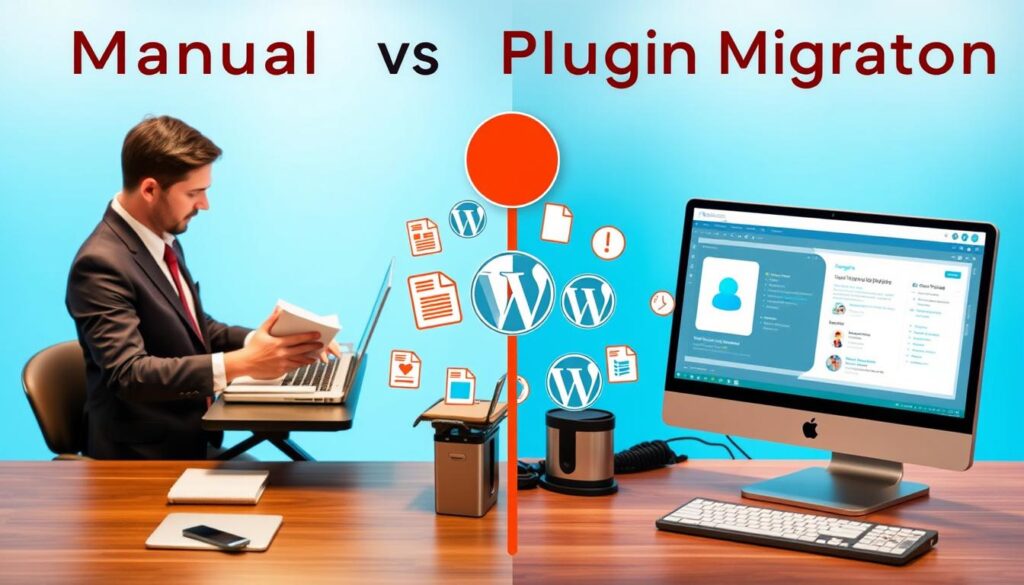
Manual vs Plugin-Based Migration Methods
Plugin-based transfers have transformed website relocation. Tools like Duplicator automate complex technical steps that once required advanced knowledge. This approach significantly reduces human error and completes transfers faster.
Manual methods remain valuable for complex scenarios. Large databases, custom configurations, and multisite networks often benefit from hands-on control. This approach ensures every aspect receives proper attention.
We often recommend a hybrid strategy. Use automated tools for the primary transfer while understanding manual processes for troubleshooting. This combination provides both efficiency and security.
| Method | Best For | Key Advantages | Considerations |
|---|---|---|---|
| Plugin-Based | Standard sites, beginners, tight timelines | Automated process, built-in verification, speed | May have file size limits, less granular control |
| Manual | Complex sites, developers, specific requirements | Complete control, handles large files, custom configurations | Technical knowledge required, time-consuming process |
| Hybrid Approach | Most business scenarios | Balances efficiency with control, provides backup options | Requires understanding both methods |
Your choice depends on technical comfort, site complexity, and timeline. Understanding both approaches ensures you’re prepared for any scenario during your website relocation.
Manually Migrating Your WordPress Site Versus Plugin-Based Methods
When planning your site transfer, one of the most critical decisions involves selecting between manual and automated approaches. We guide clients through this choice regularly, helping match technical comfort levels with the optimal solution.
Advantages and Disadvantages of Manual Migration
Manual migration offers complete control over every aspect of the transfer. You handle site files directly via FTP and manage database exports through phpMyAdmin.
The approach provides transparency into each step of the process. You gain deep understanding of your site’s structure and configuration.
However, this method requires solid technical knowledge. It’s time-consuming and carries higher error risk for those unfamiliar with the file structure.
Top Migration Plugins to Consider
For most scenarios, we recommend plugin-based solutions. Duplicator Pro transforms the complex process into a streamlined workflow.
It handles database search-and-replace automatically. The tool creates a complete zip file containing all necessary files from your old site.
Alternative options include WPvivid Backup Plugin, which offers free unlimited transfers. All-in-One WP Migration provides user-friendly functionality for beginners.
These plugins significantly reduce technical barriers. They automate error-prone steps while maintaining safety throughout the transfer.
Editing the wp-config.php File and Other Critical Settings
With your website files now residing on the new infrastructure, attention turns to establishing proper database connections. This step ensures your site communicates correctly with its data storage system.
We approach this configuration phase with precision. Proper setup prevents common post-transfer issues that can disrupt your business operations.
Updating Database Credentials
Locate the wp-config.php file in your root directory using your FTP client. Right-click and select View/Edit to access the configuration settings.
Update these three critical lines with credentials from your new host:
- define(‘DB_NAME’, ‘db_name’);
- define(‘DB_USER’, ‘db_user’);
- define(‘DB_PASSWORD’, ‘db_pass’);
Replace the placeholder values with your actual new database information. This directs your site to the correct data source on the fresh server.
Migrating Custom Code and Configuration Files
To create a new database, access your hosting control panel. In cPanel, navigate to MySQL Databases and enter a name in the Create New Database section.
Establish a new database user with secure credentials. Grant this user full privileges to ensure proper functionality.
Import your original data using phpMyAdmin’s Import tab. Upload the .sql file from your previous site to populate the fresh database structure.
| Setup Method | Required Steps | Time Estimate | Complexity Level |
|---|---|---|---|
| Control Panel | Create database, add user, set privileges | 5-10 minutes | Beginner |
| Command Line | SQL commands for database creation | 3-5 minutes | Advanced |
| Automated Tools | One-click database setup | 1-2 minutes | All Levels |
This systematic approach ensures your configuration files work harmoniously with the new environment. It maintains site stability during this critical transition phase.
Configuring DNS and Essential Post-Migration Settings
Your website now resides on the new infrastructure, but it remains invisible to the world until you complete this final, crucial step. Updating your DNS settings is what actually directs traffic to your site’s new home.
We’ll simplify this process. The Domain Name System (DNS) acts like a phonebook for the internet. It translates your memorable domain name into the numerical IP address of your new server.
Steps to Update DNS Settings Accurately
First, you’ll need specific details from your new hosting provider. This typically includes the server’s IP address for an A record. You can find this in your hosting control panel.
Next, log into the account where you purchased your domain name—your registrar. This is often a different company from your host. Locate the DNS management section for your domain.
Update the A record with the new IP address. Alternatively, you might change the nameservers entirely to those provided by your new hosting company. Save the changes.
Verifying SSL and Domain Configurations
After updating DNS, patience is key. Global propagation can take 24-48 hours. During this time, visitors might see either the old or new site.
Once propagation is complete, verify your SSL certificate. Ensure the padlock icon appears in browsers and that your site loads securely over HTTPS. This protects user data and maintains trust.
Keep your old hosting account active until you confirm everything works perfectly on the new server. Only then should you consider closing the old account.
Conducting a Thorough Post-Migration Audit
The final stage of your site transfer demands meticulous attention to detail. We’ve reached the phase that separates successful transitions from problematic ones. A comprehensive audit systematically verifies every component functions correctly in its new environment.
Checking Frontend Performance and User Experience
Begin by methodically visiting every major page type on your site. Check that each loads correctly with proper formatting and styling. Test across multiple devices and browsers to ensure responsive design functions properly.
User experience verification requires testing all interactive elements. Submit contact forms to confirm message delivery. Verify login processes and search functionality return accurate results. For eCommerce sites, test the complete checkout process.
Validating Backend Functionality and Plugin Settings
Log into your WordPress dashboard to systematically check backend operations. Ensure all plugins activate correctly with their settings preserved. Verify theme customisations and media library accessibility.
Database integrity is crucial for content display and functionality. Check that custom fields and metadata transferred properly. Confirm automated functions and scheduled tasks work as intended on the new server.
This thorough validation protects your business operations and maintains customer trust. It confirms your site migration delivers the expected performance improvements.
Troubleshooting Common Issues During Migration
Even the most carefully planned relocation can encounter unexpected technical hurdles. We regularly help clients navigate these challenges when they migrate WordPress site platforms. Common errors often appear only after the transfer completes.
The “Error Establishing a Database Connection” message frequently appears post-transfer. This typically indicates incorrect credentials in your wp-config.php file. Verify that your database name, user, and password match your new hosting environment exactly.
Broken links represent another common complication. These occur when URLs in your database still reference your old domain. Running a search-and-replace operation updates all references to your current setup.
Identifying and Fixing Broken Links and Database Errors
Systematic troubleshooting helps identify the root cause of problems. For database issues, check that your .sql file imported completely without errors. Confirm the database user has all necessary privileges on your new server.
When addressing broken links, use dedicated checker tools to generate a comprehensive list. Update internal links to correct paths and implement 301 redirects for changed URLs. This preserves your SEO value and maintains user experience.
Plugin conflicts can also cause functionality problems after you migrate your WordPress site. If errors occur, deactivate plugins one at a time to identify the problematic one. Check for updates or find alternatives if compatibility issues persist.
Contact hello@defyn.com.au if you are struggling with your WordPress customisation with your developer
We understand that troubleshooting can be frustrating when working against deadlines. If you encounter complex challenges with your WordPress website during or after relocation, our team provides expert assistance. We help resolve database problems, configuration issues, and ensure your site functions perfectly in its new environment.
Conclusion
The true measure of a successful website transition lies not in the technical transfer alone, but in the comprehensive verification that follows. We’ve guided you through the complete journey from preparation to final audit.
Your WordPress migration represents a significant investment in your digital presence. Treating it as a two-phase process—transfer plus systematic verification—protects that investment completely.
The thorough audit checklist we provided ensures your site functions optimally in its new environment. This approach delivers lasting benefits: improved performance, enhanced security, and maintained search rankings.
Remember that proper preparation and patient verification are your strongest allies. Whether using modern plugins or manual methods, the systematic approach we’ve outlined positions your website for continued success on superior hosting infrastructure.
Your business deserves a digital presence that performs reliably. By following this complete methodology, you’ve taken a crucial step toward that goal.
FAQ
Why is a post-migration audit so important?
What should I do to prepare my site before moving it?
How do I choose the best hosting provider for my needs?
What is the safest way to back up my entire website?
Should I move my site manually or use a plugin?
What critical file needs updating after moving to a new server?
What are the key steps after the files and database are moved?
What common problems should I look for after migration?
I’m having trouble with my site after moving it. What should I do?
Insights
The latest from our knowledge base