WordPress Block Theme Development Step by Step

Table of Content


-
Author

-
Published
16 Dec 2025
-
Reading Time
18 mins
Remember that feeling when you first looked at your website and thought, “This just doesn’t feel right”? We’ve been there too. That moment when you realise your online presence doesn’t truly reflect your business’s unique character can be frustrating. It’s like wearing someone else’s clothes – they might fit, but they’ll never feel like yours.
That’s exactly why we created this comprehensive guide. We understand how overwhelming platform development can feel when you’re faced with conflicting tutorials and technical jargon. You want components that match your brand perfectly, not generic solutions that leave your website feeling impersonal.
This step-by-step tutorial takes you from complete beginner to confident creator through practical, actionable instructions. You’ll learn how to build structured layouts and branded components that maintain your site’s integrity over time. We focus on creating intuitive interfaces that reduce errors and support requests.
Whether you’re building simple content elements or complex interactive features, this guide provides the foundation for professional-grade results. We believe everyone deserves a digital presence that truly represents their business vision.
Key Takeaways
- Learn to create tailored components that perfectly match your brand identity
- Follow practical, step-by-step instructions from beginner to advanced level
- Build structured content layouts that remain maintainable over time
- Create intuitive interfaces that reduce errors and support needs
- Develop professional-grade elements for your specific business requirements
- Understand best practices for performance and user experience
- Access expert support at hello@defyn.com.au for personalised assistance
Introduction to WordPress Block Theme Development
When your digital presence requires more than basic templates, tailored solutions become essential. We’ve helped numerous Australian businesses transition from generic layouts to purpose-built components that truly represent their brand.
Purpose and Benefits of Custom Blocks
Standard editors work well for simple needs. However, structured layouts and branded elements demand specialised components. These tailored elements provide substantial advantages beyond visual appeal.
They enforce consistency across your entire site while creating a maintainable foundation. Once developed, these reusable components save significant development time by eliminating repetition.
Well-designed elements prevent messy, inconsistent content that breaks design integrity. They also create an intuitive editing experience that reduces friction for non-technical users.
Need for Expert Support
We understand that not every business has in-house technical expertise. Professional support bridges the gap between what you need and what you can build independently.
If you’re struggling with your WordPress customisation or need guidance, contact our team at hello@defyn.com.au. We specialise in handling technical complexities so you can focus on core business objectives.
Understanding Custom Block WordPress
The true power of modern WordPress emerges when you move beyond basic building blocks. These specialised components are essentially structured JSON objects that define how content behaves in your editor and appears on your site.
We distinguish between two fundamental types: static and dynamic elements. Static versions save their content directly in your post database. They render entirely in the browser using JavaScript. This approach works well for fixed design elements that rarely change.
Dynamic alternatives generate content on the server using PHP. They can pull real-time data without manual updates. Imagine displaying your site name from settings or showing recent posts automatically.
The Block API provides the framework for registering these components. It ensures they integrate seamlessly with the native editor. This system gives developers flexibility to choose the right approach for each project.
We’ll guide you through both static and dynamic rendering methods. You’ll learn when each approach delivers the best results for your specific requirements.
Setting Up Your Development Environment
Before writing your first line of code, you need the right tools and workspace. We guide you through creating a professional development environment that matches what experienced developers use daily.
Your setup requires three core components. First, choose a capable code editor like Visual Studio Code. It provides syntax highlighting and debugging tools that catch errors early.
Required Tools and Code Editor
Node.js serves as the foundation for modern development. It enables build tools and package management through npm. This runtime environment handles contemporary JavaScript features efficiently.
A quality editor transforms your workflow. Visual Studio Code offers specific extensions for React development. These streamline your process and reduce configuration time.
Local WordPress Setup and Node.js
For your local site, you have excellent options. Local provides a user-friendly graphical interface perfect for quick setup. Alternatively, wp-env offers a Docker-based solution maintained by the project itself.
The wp-env tool maps your project folder directly to the plugin directory. This eliminates manual file copying and complicated configuration steps. It creates a seamless testing environment for your plugin.
We recommend installing tools in this order: code editor, Node.js, then local environment. This tutorial assumes you complete these steps before proceeding. Your properly configured workspace ensures success throughout this guide.
Scaffolding Your Block Plugin with @wordpress/create-block
Efficient component creation starts with leveraging the official scaffolding package for rapid setup. We guide you through generating your initial structure using the create-block tool. This approach saves hours of manual configuration while ensuring best practices.
Using the Create Block Package
Navigate to your plugins directory in the terminal. Execute the command: npx @wordpress/create-block@latest copyright-date-block --variant=dynamic. This generates a complete foundation for your project.
The –variant=dynamic flag configures server-side rendering for dynamic content. Your new folder contains all necessary files for immediate development. The slug becomes your unique identifier throughout the system.
Overview of the Generated File Structure
The scaffolding process creates a well-organised project layout. Key directories include src for development files and build for production assets. The node_modules folder stores required dependencies.
Understanding package.json is essential for managing your project. This file defines metadata and lists dependencies like @wordpress/scripts. It also provides npm scripts for building and testing your code.
| File/Directory | Purpose | Location |
|---|---|---|
| src/ | Source files for development | Root directory |
| build/ | Compiled production files | Root directory |
| node_modules/ | JavaScript dependencies | Root directory |
| package.json | Project metadata and scripts | Root directory |
| copyright-date-block.php | Main plugin registration file | Root directory |
After generation, activate your new plugin in the admin area. Verify you can add it to posts or pages. This confirms your environment is ready for customisation.
Exploring Block Metadata and block.json Configuration
Understanding the central configuration hub is essential for creating components that integrate seamlessly with the editing experience. This metadata file serves as the single source of truth for your component’s properties.
We guide you through mastering this critical configuration system. It eliminates duplicate settings across multiple files while ensuring consistent behaviour.
Customising Block Attributes
Attributes form the core data structure of your component. Each attribute requires a defined type that tells the platform how to store and validate information.
The source field determines how values extract from saved content. You can store data in HTML attributes, text content, or comment delimiters. Each approach offers different benefits for various content scenarios.
For example, a simple text attribute might use string type with default values. More complex setups might require enum types with specific allowed options.
Understanding the File Structure in block.json
The configuration file contains essential properties that define your component’s identity. The name must be unique and namespaced to prevent conflicts.
Key metadata includes the human-readable title and category placement. The description helps users understand the component’s purpose quickly.
The supports object defines which native features your component inherits. This includes alignment options, colour controls, and typography settings. Proper configuration gives extensive functionality with minimal code.
Stylesheet references handle both editor and frontend appearance. You can reference separate CSS files or rely on built-in styling supports.
Editing the Block: Frontend vs Editor Experience
One of the most significant learning curves involves understanding the dual rendering systems that power your interactive elements. The editing interface and published website require separate approaches to ensure consistent user experiences.
Modifying edit.js for a Customised Editor
The edit.js file defines how your component behaves within the editing environment. This JavaScript function creates the interface content creators interact with directly.
We use the useBlockProps() hook to apply necessary CSS classes and styles automatically. For our copyright example, the code retrieves the current year dynamically while editing:
const currentYear = new Date().getFullYear().toString();

return <p { ...useBlockProps() }>© { currentYear }</p>
Updating render.php for Accurate Frontend Display
The render.php file handles server-side rendering for the live website. This PHP function generates the final HTML that visitors see published.
get_block_wrapper_attributes() mirrors useBlockProps() functionality for frontend consistency. Our copyright block automatically updates yearly without manual intervention:
<p <?php echo get_block_wrapper_attributes(); ?>>© <?php echo date( "Y" ); ?></p>
This separation ensures real-time data displays correctly while maintaining editing simplicity. Understanding both environments is essential for professional component development.
Adding Block Supports: Typography and Colour Options
Styling controls should feel intuitive, not intimidating. We leverage native platform features to provide professional design options without complex code. This approach gives content creators familiar tools while maintaining design consistency.
The supports object in your configuration file unlocks powerful styling capabilities. By adding just a few lines, you enable colour panels and typography controls that match core platform functionality.
For our copyright example, we configure specific supports: text colour enabled, background colour disabled, and font size controls active. This granular control ensures users access only relevant styling options.
When you enable text colour support, the platform automatically includes background colour by default. We manually disable unwanted features to keep the interface clean and focused.
The system handles everything automatically once supports are configured. It creates settings panels, stores user selections, and applies appropriate CSS classes. This eliminates the need for custom stylesheets in many cases.
After implementing these supports, refresh your editor and select your component. You’ll see new Color and Typography panels in the settings sidebar. Test different combinations to verify they work correctly in both preview and published views.
Implementing a Custom Icon for Your Block
Distinctive visual markers help content creators quickly identify your specialised components among standard options. We focus on enhancing your element’s professional appearance through branded iconography.
The index.js file serves as your primary registration point. This is where the registerBlockType function connects your metadata with additional JavaScript configuration.
Adding a Custom SVG Icon
Most properties are defined in block.json, but SVG icons require JavaScript implementation. Create a constant variable containing your chosen icon markup.
Here’s a practical example using a calendar icon:
const calendarIcon = <svg viewBox="0 0 24 24">...</svg>;
Add this icon to your configuration object alongside the edit property. The editor will immediately reflect your changes after refreshing.
| Icon Property | Required Value | Purpose |
|---|---|---|
| Dimensions | 24×24 pixels | Standard sizing |
| viewBox | 0 0 24 24 | Proper scaling |
| SVG Source | Gutenberg Storybook | Visual consistency |
| Implementation | JavaScript constant | JSON compatibility |
Custom icons significantly improve user experience by making your elements easier to identify. This approach ensures visual differentiation when building multiple components.
Following these steps creates a polished, professional appearance for your development work. The improved identification helps content creators work more efficiently.
Creating Interactive Block Attributes
Transform your static elements into interactive components that respond to user preferences. We guide you through building intuitive settings panels that give content creators control over component behavior.
This approach moves beyond fixed displays to create adaptable features. Your users can configure elements directly through familiar interface controls.
Using InspectorControls for Custom Panels
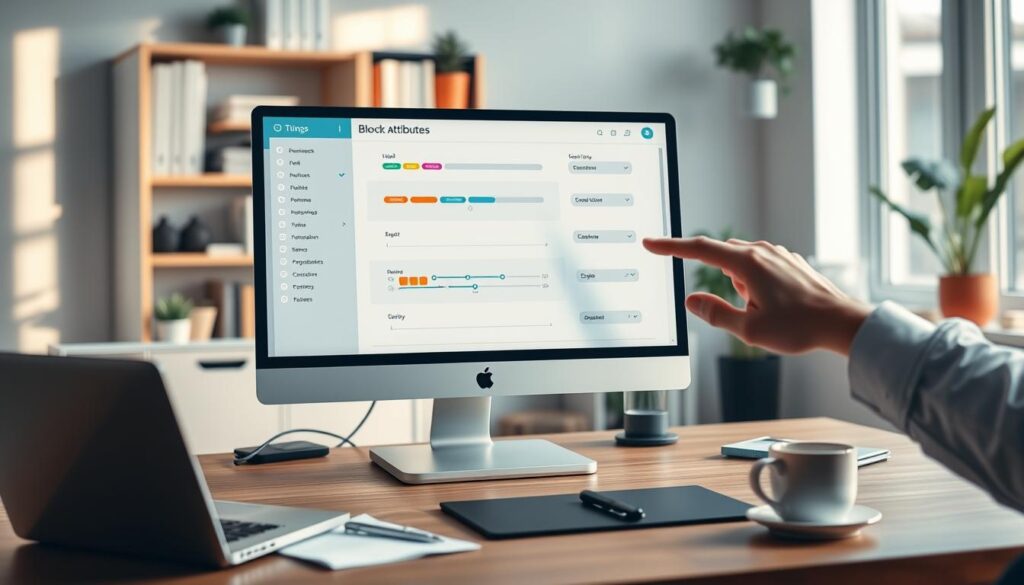
The InspectorControls component creates dedicated settings areas in the sidebar. This keeps the main editing canvas clean while providing access to advanced options.
We import this essential tool from the @wordpress/block-editor package. It works alongside your main content through React Fragments.
“Great interface design puts power in users’ hands without overwhelming them with complexity.”
Your Edit function returns both the InspectorControls panel and block content. This dual output structure maintains separation between configuration and display.
Configuring Toggle and Text Inputs
Attribute definition begins in your block.json file. We specify data types that match your intended functionality.
For our copyright example, we add two related attributes:
- showStartingYear (boolean toggle)
- startingYear (text input)
The boolean type handles true/false states for toggle switches. String types manage text input fields for year values.
| Attribute Type | Component Used | User Interaction |
|---|---|---|
| Boolean | ToggleControl | On/off switching |
| String | TextControl | Text input field |
| Number | NumberControl | Numeric values |
Implementation requires importing specific components from @wordpress/components. PanelBody creates collapsible sections for organised settings.
Your Edit function receives attributes and setAttributes parameters. This follows React’s state management pattern for updating values.
Conditional rendering with the && operator shows fields only when relevant. The logical OR operator prevents errors with empty values.
This combination creates a robust interface that responds intelligently to user choices. Your elements become truly interactive rather than static displays.
Testing and Debugging Your Block in the WordPress Editor
Nothing reveals the quality of your development work like thorough testing in the actual environment. We integrate verification throughout the entire development process to catch issues early. This approach prevents broken functionality from reaching your users.
Start by confirming your plugin is active in the admin area. Create a new page or post to test inserting your component. This basic verification ensures the foundation works correctly before adding complexity.
Troubleshooting Common Issues
The npm run start command enables automatic rebuilding during development. However, you still need to refresh the editor browser window to see changes. This hot reloading saves time but requires manual refresh for visibility.
Browser console logging provides immediate feedback on attribute behavior. Adding console.log(attributes); at the top of your Edit function displays current values. This helps verify that settings update correctly during interaction.
Test interactive features systematically. Toggle controls on and off, enter text values, then save and reload the page. Confirm all settings persist correctly across sessions. This method catches state management issues before deployment.
Always verify both editor preview and frontend display. Dynamic components particularly need dual testing since they use different rendering paths. Watch for styling differences or console errors that indicate missing dependencies.
Keep your browser developer tools open during testing. JavaScript errors and React warnings appear here, providing crucial debugging information. This real-time feedback helps identify issues quickly.
Advanced Techniques for Static and Dynamic Block Rendering
Mastering rendering strategies marks the transition from basic component creation to professional development work. We explore when to use each approach based on your specific content requirements.
Static Block Rendering Strategies
Static elements save complete HTML markup directly into your post content. This approach works perfectly for fixed design elements that don’t need frequent updates.
The save.js file defines how attributes convert into final markup. This JavaScript function runs only during content saving, making static elements extremely performant on the front end.
Dynamic Content Rendering with PHP
Dynamic rendering stores only attributes in post content, generating HTML on the server during each page load. This allows elements to display current information without manual updates.
For our copyright date example, dynamic rendering is essential. It automatically updates the year without requiring content edits when the calendar changes.
Understanding useBlockProps.save() for static elements versus get_block_wrapper_attributes() for dynamic ones is crucial. Both ensure proper styling but work in different contexts.
Advanced developers often create hybrid approaches. They use dynamic rendering for changing data while maintaining static elements for constant design structure.
Optimising Your Block for Production and Performance
Preparing your component for live deployment requires a different mindset than development work. We focus on ensuring your creation loads quickly and runs smoothly for website visitors. This final optimisation stage directly impacts user experience and search rankings.

Building and Minifying Code
The transition from development to production involves crucial changes to your code. Your package.json file contains two essential commands with distinct purposes.
During active development, use npm run start. This creates readable code with helpful debugging features. It automatically rebuilds when you save files, saving valuable time.
For live deployment, switch to npm run build. This command minifies your JavaScript and CSS files. It removes whitespace and shortens variable names to reduce file sizes significantly.
“Performance optimisation isn’t about cutting corners—it’s about delivering the same functionality more efficiently.”
Always terminate the development process before building for production. Use Ctrl+C in your terminal, then verify all files are saved. This prevents building broken code into your final plugin.
The build process generates optimised files in your build folder. WordPress loads these production files rather than your source files. This separation keeps your development environment clean.
Remove unused assets to improve performance further. If your component doesn’t need custom CSS or frontend JavaScript, delete those files from your src folder. Also remove their references from your configuration file.
Common files to eliminate include editor.scss, style.scss, and view.js. This cleanup reduces your plugin’s size and prevents WordPress from loading unnecessary resources. Your website visitors benefit from faster loading times.
After building, check that your build directory contains recently updated files. Test your component thoroughly in a staging environment before deployment. This final verification ensures everything works correctly under production conditions.
Learning Resources and Helpful Web Sources
Quality documentation and alternative approaches can significantly accelerate your learning curve in component creation. We’ve curated the most valuable resources to take your skills beyond this foundation.
Reviewing Official Documentation and Tutorials
The official Block Editor Handbook serves as the authoritative reference for development work. However, it assumes familiarity with React and modern JavaScript.
Consider working through React’s Quick Start tutorial first if these concepts are new. Specific documentation pages deserve bookmark status for ongoing reference.
The “Get started with create-block” documentation explains the scaffolding tool in depth. “Working with JavaScript for the Block Editor” covers the essential ecosystem.
Exploring Alternative Methods like ACF Blocks
Alternative approaches deserve serious consideration, particularly ACF Blocks which use PHP instead of React. In 2024, 57% of developers using the editor built components with ACF.
This approach leverages PHP and HTML rather than JavaScript. It makes development more accessible to those specialising in theming.
The efficiency gains are substantial. Developers report building simple elements in approximately twenty minutes. More complex components take one to two hours.
Consider your team’s existing skills when choosing an approach. Both methods offer professional results for different technical backgrounds.
Conclusion
This guide has equipped you with practical skills for creating tailored website elements. You now understand the complete development process from environment setup to production optimisation.
We’ve covered essential techniques that save development time while ensuring consistent branding. The structured approach provides a reliable framework for any project.
Start building your first component today. Begin with simple elements and gradually increase complexity as your confidence grows.
Remember that professional support is available if you encounter challenges. Our team at hello@defyn.com.au specialises in handling technical complexities.
Your journey toward creating professional digital experiences has just begun. Each component you build strengthens your skills and enhances your website’s capabilities.
FAQ
What tools do I need to start building a custom block for my website?
How does the block.json file improve my development process?
What’s the difference between editing the editor interface and the frontend display?
Can I add colour and typography controls to my custom element?
What are some common issues when testing a new block in the editor?
When should I consider using static versus dynamic rendering for content?
Are there alternative methods to create custom elements if I’m not comfortable coding?
Insights
The latest from our knowledge base